Make "My Places" your place...
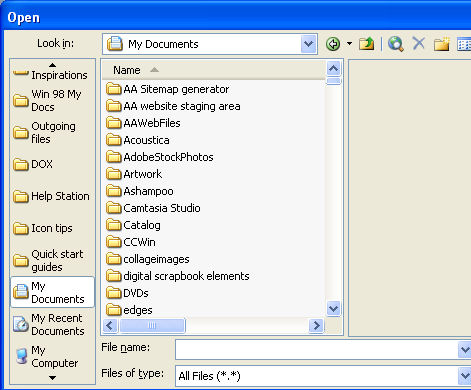
Until I discovered how to add folders in the list down the left of the Word and other Office program's Save As and File Open dialogs I spent hours navigating to get to the right folder to save a file. Some days it felt like it would be simply easier to dump everthing in the one folder and worry about finding it later on. Ok, I know - bad idea - but it was tempting.
Now I fill my My Places list with all the folders I need long term and short term so saving files in the right folders is simplicity itself. All I do is click the folder in the list on the left and I'm there - just where I want to be.
To do this yourself, from inside Excel or Word, for example, choose File, Save As and notice the My Places bar down the left of the Save As dialog. Navigate to the folder that you want to add to your My Places toolbar and select the folder. Click the Tools menu option in the top right of the dialog and choose Add to My Places. The folder will be automatically added to the bottom of your My Places bar. You can now click it to open the folder anytime you need it and it stays there from one Office session to the next.
Once you no longer need it, you can remove the folder from the list by right clicking it and choose Remove. You can also rename the folder and reorder items in the list by right clicking and choose Delete or Move Up/Move Down as required. You can also switch to small icons if there are too many folders in your My Places bar to see them clearly. The same folders turn up when you choose to open or save a file. Organization is just a click away.
Now I fill my My Places list with all the folders I need long term and short term so saving files in the right folders is simplicity itself. All I do is click the folder in the list on the left and I'm there - just where I want to be.
To do this yourself, from inside Excel or Word, for example, choose File, Save As and notice the My Places bar down the left of the Save As dialog. Navigate to the folder that you want to add to your My Places toolbar and select the folder. Click the Tools menu option in the top right of the dialog and choose Add to My Places. The folder will be automatically added to the bottom of your My Places bar. You can now click it to open the folder anytime you need it and it stays there from one Office session to the next.
Once you no longer need it, you can remove the folder from the list by right clicking it and choose Remove. You can also rename the folder and reorder items in the list by right clicking and choose Delete or Move Up/Move Down as required. You can also switch to small icons if there are too many folders in your My Places bar to see them clearly. The same folders turn up when you choose to open or save a file. Organization is just a click away.
Labels: Excel 2003, Microsoft Word, My Places., Office
posted by Projectwoman @ 8:24 AM
-
Links to this post


