Articles | Photoshop and Photography blog | about me |e-mail

ProjectWoman

Welcome to Helen Bradley's Microsoft Office and productivity blog. I'm a lifestyle journalist specializing in business and consumer software and here you'll find handy hints for using software such as Microsoft Office 2007 and other office applications. Elsewhere on projectwoman.com you'll find tutorials, articles, how tos and tips on photography and Photoshop CS3. My publishing credits include PC Magazine, Windows XP magazine, CNet, PC User magazine, InformIT and others.

Friday, August 15, 2008

Excel - Multiply cell values inside the cell


This is totally cool. I had no idea you could do it but I just tripped over this Excel feature.

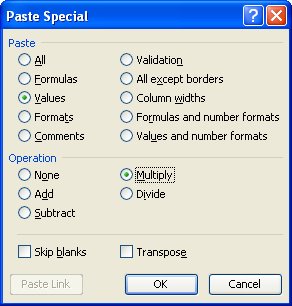
Scenario: you have a list of values in a column that you want to multiply by a second value. Type the multiplier in a cell, anywhere. Click the cell and choose Edit > Copy so it's on the Clipboard.

Now select the cells that contain the values you need to multiply. Choose Edit > Paste Special and click Multiply and click Values and click Ok. Excel replaces the values in the selected cells with the result of multiplying the values by the constant. It's all done in situ so you don't have to create new columns, multiply then paste the values back.

Oh, and there are options for Add, Subtract and Divide too so you can do all your math inside the current cell. Gotta love that!

Labels: , ,

Add to Technorati Favorites

Tuesday, April 29, 2008

Sorting data in Excel


Sometimes the data in your worksheet doesn't appear in the order you want it to. You can reorder the data by sorting it.

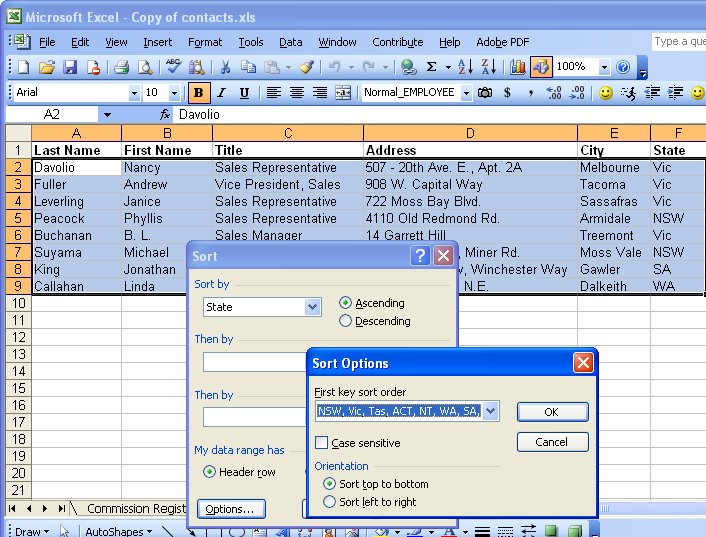
To sort data in a worksheet, select it using your mouse, or click inside the data area and press Control + Shift + * to select all the cells in the current block. In Excel 2003, choose Data, Sort and then choose the column which contains the data to sort from the Sort by: dropdown list. To sort on more than one column choose the second column from the dialog's Then by: dropdown list. For example to produce a 'phonebook' type of sort, first Sort by the column containing the last name and Then by: the column containing the first name. If you do this, two people with the same last name will be grouped together but appear in alphabetical order by first name.

You can also sort in order of a custom list. So, for example, if you wanted all the people who live in Victoria to appear at the top of a list then those who live in NSW, etc.. create a custom list with the state names (or abbreviations) in the order you want to use for sorting. Then choose the State column in your data list as the Sort by: column and click Options. From the First key sort order dropdown list choose the custom list containing the state details and click Ok, and Ok again. The list will be sorted in order of the entries in your custom list and any entries which don't match an item in the list will appear at the end, in alphabetical order.

Labels: , ,

Add to Technorati Favorites

Thursday, March 20, 2008

What's in a name? Auto_Open or AutoOpen

Sometimes you wonder if the folks up at Redmond are laughing at us behind our backs. Really, do they deliberately set out to confuse us or are they just that plain disorganised?

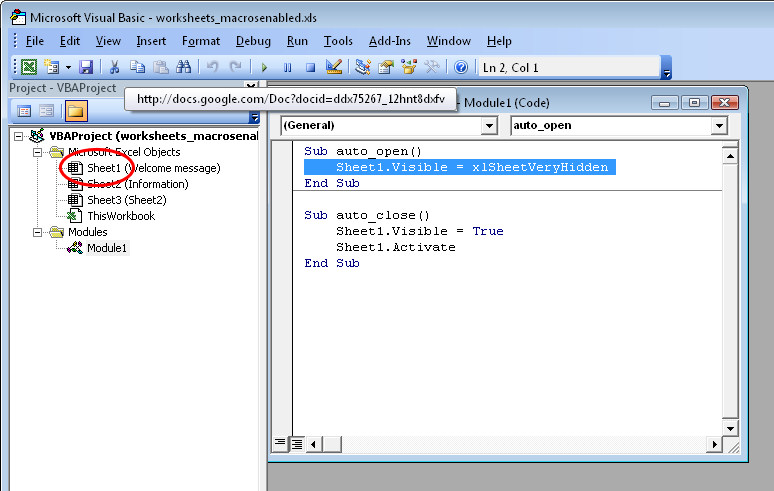
Today my quandary involves Auto_Open and AutoOpen. These are two special macro names. The first, Auto_Open is Excel's special named macro that runs automatically when the workbook containing it is opened. AutoOpen is the Word equivalent. It makes no sense that one has an underscore and the other doesn't - it just makes life for us VBA folk a little more confusing than it should be.

The other macros Auto_Close and AutoClose work the same way, Auto_Close is the Excel macro name - call a macro by this name and save it in your workbook and it will run whenever you close the workbook. In Word, the name is AutoClose.

To add to the confusion, PowerPoint doesn't support either of the naming conventions, in fact, you can't create auto running macros in PowerPoint the same way you do in Word and Excel. The workaround is cumbersome, you need to create a PowerPoint add-in that includes the Auto_Open subroutine. Load the Add-in and PowerPoint will run the code in Auto_Open it loads and ditto for subroutine called Auto_close - it runs when the add-in is unloaded - which happens automatically when you exit PowerPoint. Learn more about how to do this in this KnowledgeBase article.

Thanks Redmond, we are now officially confused!

Labels: , , , , , , ,

Add to Technorati Favorites

Monday, February 25, 2008

Leading zeros in Excel

This is a fun solution. You want to put a series of numbers in a range in Excel and you want them to have leading zeros. So you want, 001, 002, 003 etc. Problem is that Excel drops the zeros when you type them. It makes sense, leading zeros aren't required and really don't aid comprehension. However, for your own reasons, you want them.

Here's how to do this:

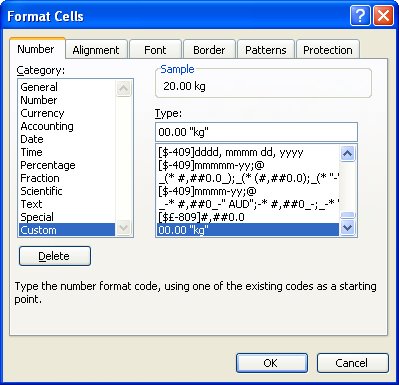
Select the cells and choose Format > Cells > Number tab. Select Custom from the Categories list and in the box marked Type:, type this:

00#

This tells Excel that there must always be 3 digits showing which forces leading zeros to be displayed. It doesn't do anything to the numbers so they are still numbers which is just as you would want it to be.

Labels: ,

Add to Technorati Favorites