


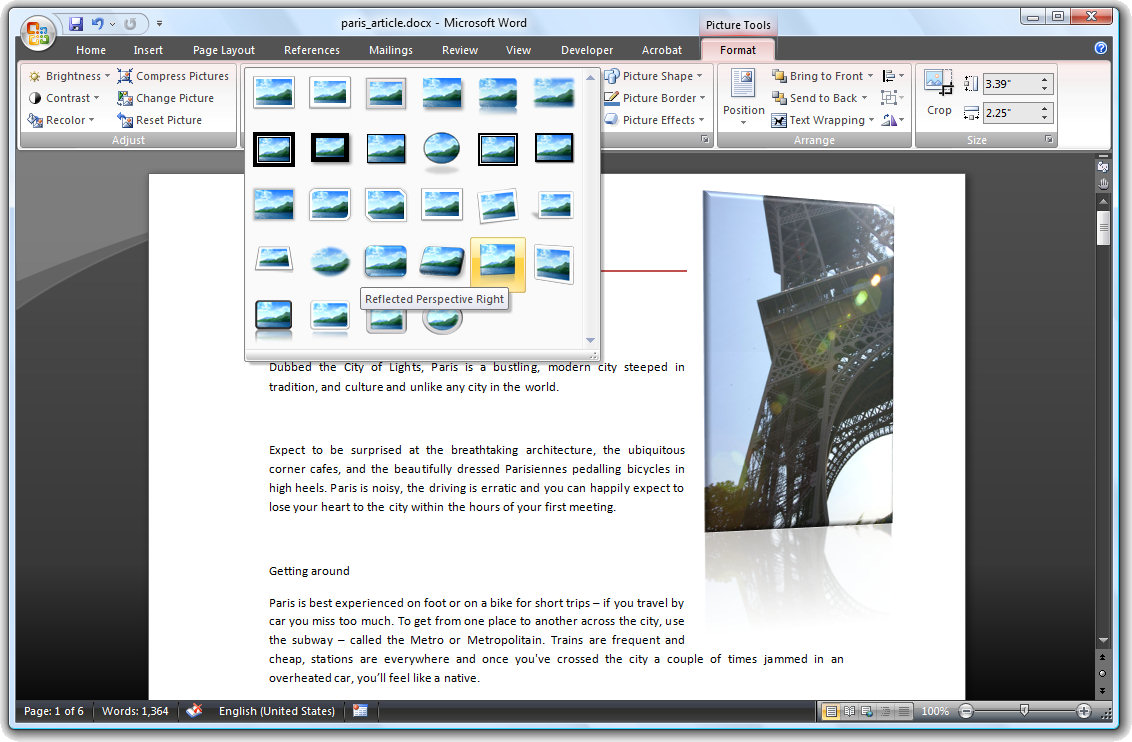
The picture formatting tools in Word 2007 are far more sophisticated than those in earlier versions of Word.
To see them at work, insert a picture into your document, click the image and choose Picture Tools > Format on the Ribbon. The Picture Styles are formats you can apply to your image and they include some attractive looking options including wide and narrow black or white borders and rotated options.
Once you have selected a picture style to use you can adjust other characteristics of the format such as the Effects which it are applied to it. So, for example, you can create a reflection by selecting the picture and choose the Picture Effects > Reflection to add a reflected edge.
You can recolor the picture border using the Picture Border option.
If you have formatted a picture to look the way you want it to look and you change your mind about the image to use, don’t panic. Choose Picture Tools > Format > Change Picture and choose an alternate image leaving your formatting unchanged.
Post a Comment
Please feel free to add your comment here. Thank you!