


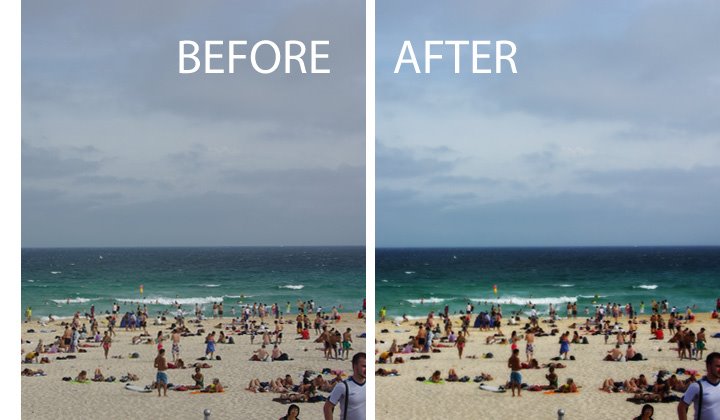
Ok, so not technically Photoshop only – this tip works for any image software that supports layers, has layer blend modes and can do a gaussian blur. That includes Photoshop, Photoshop Elements and Paintshop Pro as well as lots of other great photoediting programs.
This is a very quick fix for boosting and image and giving it a really nice look.
Step 1
Start by duplicating the image layer by choosing Layer > Duplicate Layer.
Step 2
Add a Gaussian blur to the top layer by using Filter > Blur > Gaussian blur. You need to use enough radius to get a nice light blur on your image. For smaller images you need only a small value blur – say 2-4 and for larger images you will need a higher value. Click Ok when you’re done.
Step 3
Now set the Blend Mode for this blurred top layer to Soft Light or Overlay. You’ll get a nicer looking image and the colors will get a nice boost. Reduce the layer opacity a little if necessary.
This is a simple and effective fix and isn’t that the best type?
This technique works great on scanned 35mm slides from the 70’s! Now I need to learn how to automate it so I can run it on a whole batch of slides!
Thanks!