

Articles | Photoshop and Photography blog | about me |e-mail

ProjectWoman

Welcome to Helen Bradley's Microsoft Office and productivity blog. I'm a lifestyle journalist specializing in business and consumer software and here you'll find handy hints for using software such as Microsoft Office 2007 and other office applications. Elsewhere on projectwoman.com you'll find tutorials, articles, how tos and tips on photography and Photoshop CS3. My publishing credits include PC Magazine, Windows XP magazine, CNet, PC User magazine, InformIT and others.

Monday, October 1, 2007

Take a snap - Excel 2003 and earlier.


Need a copy of part of an Excel worksheet? Too easy!

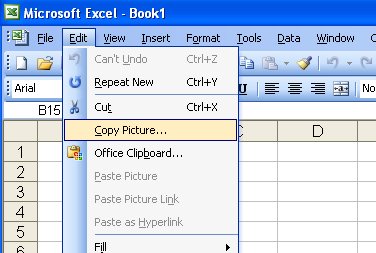
You can take a picture of a range in Excel and, for example, insert into Word as a picture or place it an image in another area on a workbook. To do this, first select the area to snap and hold Shift as you open the Edit menu. Choose Copy Picture, select As shown on screen or As shown when printed and click Ok.

Now go ahead and paste the image wherever you desire. This Shift + Edit menu option also works for copying a clip art or other type of image inserted into an Excel workbook.

Labels: , ,

Add to Technorati Favorites

1 Comments:

At November 21, 2007 12:19 PM , Blogger Darcy said...

And in older versions of Excel, you can access this capability via the Camera icon in the toolbar.

Just click the icon then click&drag the area of your spreadsheet that you want to make a graphics/picture copy of (a selection marquee will show the area about to be copied).


In many versions of Excel, this icon is not on the default toolbars. Just add it back via the Customise menu -- it's under Commands->Tools as "Camera".


Post a Comment

Links to this post:

Create a Link

<< Home