


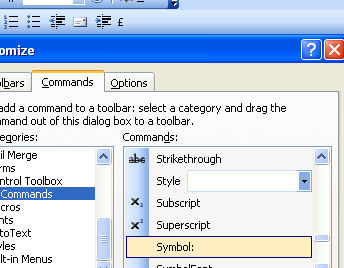
I use the £ and ¢ symbols a lot but they’re not on my keyboard. However they’re on my toolbar, thanks to the ability to customize Word’s toolbars.
Right click Word’s toolbar and choose Customize and then the Commands tab. Click the All Commands option in the Commands list and locate and click the Symbol: entry. Drag and drop it onto a toolbar and, when the symbol dialog appears, click the symbol to attach to the button and click Ok.
The toolbar button displays the font name and the symbol number. To make it look prettier, right click the button and type a different name for it. If the symbol can be typed using the keyboard by pressing the Alt key and typing out the numbers then do this. Alternately, click the Edit Button Image button and draw the symbol to create your own icon.
And, if you’re curious, the £ symbol is Alt + 0163 and the ¢ symbol is Alt + 155 – so now you know.
Post a Comment
Please feel free to add your comment here. Thank you!