


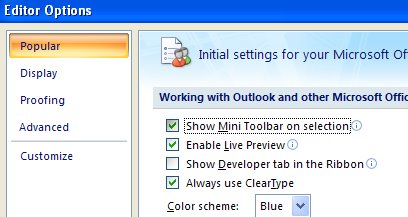
If you don’t like the new mini toolbar that appears when you right click something in an Office 2007 document, you can axe it. You can’t customize it, you can’t add or remove anything from it but you can zap it.
In Word 2007, PowerPoint 2007and Excel 2007 you do this by clicking the Office button and choose the Options link at the foot of the dialog. In the Popular group you will disable the Show Mini Toolbar on selection checkbox.
The steps are a little different in Outlook 2007 in Outlook, you need to open an element that uses the new Ribbon interface such as a new message window. Now click the Office button, Editor Options and disable the Show Mini Toolbar on selection checkbox.
If you want it back at any time, just reverse the process.
Post a Comment
Please feel free to add your comment here. Thank you!