


I like Word smart quotes most of the time but sometimes, like when I’m preparing an email or some code, they’re not needed and can make a mess of the project.
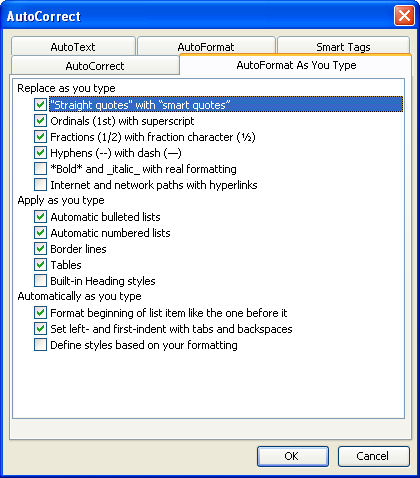
You can, quite easily, stop this happening if you choose Tools, AutoCorrect Options, AutoFormat as you Type tab and disable the checkbox for “Straight quotes” with “smart quotes” and click Ok. Now you’ll have straight quotes in your document.
Reverse the process to get them back.
This simple macro, attached to a toolbar button can do the toggling work for you (just make sure you put everything between the Sub and End statements appears on one line:
Sub changeQuotes()
Options.AutoFormatAsYouTypeReplaceQuotes = Not (Options.AutoFormatAsYouTypeReplaceQuotes)
End Sub
Post a Comment
Please feel free to add your comment here. Thank you!